[Previous] [Main] [Next]

Log Buttons and Logging Tools


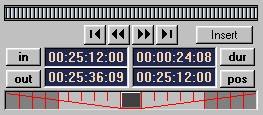
The Logging buttons and Jog/Shuttle bars provide all the basic controls you will need for logging the specific material you wish to use from the media file as a storyclip.

   4_2_2.jpg

The In and Out buttons let you select In and Out points for the media file. These points will be used for the creation and insertion of a storyclip to the timeline. Simply locate the frame you wish to use and press the In or Out button to set the log point. The Duration field (DUR) will tell you the duration of the selected material. The Position field (POS) tells you the current frame being displayed in the monitor. This information is updated as you scrub through the media file.

The Jog and Shuttle bars let you scrub through your material to locate specific frames for your In and Out points. To use the Shuttle bar, simply click on the bar and drag to the left or right while maintaining the mouse click.

   4_2_3.jpg

To use the Jog bar, click on the Jog knob and drag it to the left or right to scrub your material. Dragging to the left will reverse playback, while dragging to the right will advance your material.

   4_2_4.jpg

To both sides of center, you will find that there is a light and a shaded region. The light region will scrub material slowly (less than 100% play back speed) while the shaded region will speed up playback. Each region is further divided into increments giving you an indication of the playback speed. Starting from center these increments are:

Light region: 20%, 40%, 60%, 80%  
Shaded region: 200%, 300%, 400%, 500%  

The line separating light from shade is 100% playback speed. The maximum playback speed is 5 times the original playback speed.


Tips & Notes


·Use the Q (In) and W (Out) shortcut keys to log points quickly. To cue your In and Out points, use the shortcut keys I (cue In) and O (cue Out). These shortcut keys work for all Incite Media Assistant's logging monitors.  

·The Dur and Pos buttons are primarily used in conjunction with the RTF field. Right clicking on these buttons will automatically insert the timecode as part of a Rich Text Format entry. For more, see Entering Timecode Quickly and Timecode "Hyper-text" Cueing Features. Otherwise, these two buttons are not used, in a direct way, for logging storyclips.  

·Important: If you are not seeing the logging tools in the Preview/Logger area, activate the Change View drop-down menu and toggle from Hide to Show Log Buttons. Hiding the Log buttons is useful when you are previewing material only. If the Preview/Logger area is too small, the Jog bar may not be visible. Drag the boundaries of the area (i.e. the divider between the Preview/Logger and the RTF field) to expand the view.  

·You can work with more than one media file simultaneously by launching additional Log Windows. These additional logging windows provide the same logging and insertion tools (although they do not have their own RTF field). To launch additional logging windows see Working with Multiple Logging Windows.  


[Previous] [Main] [Next]